Sign in from the apps
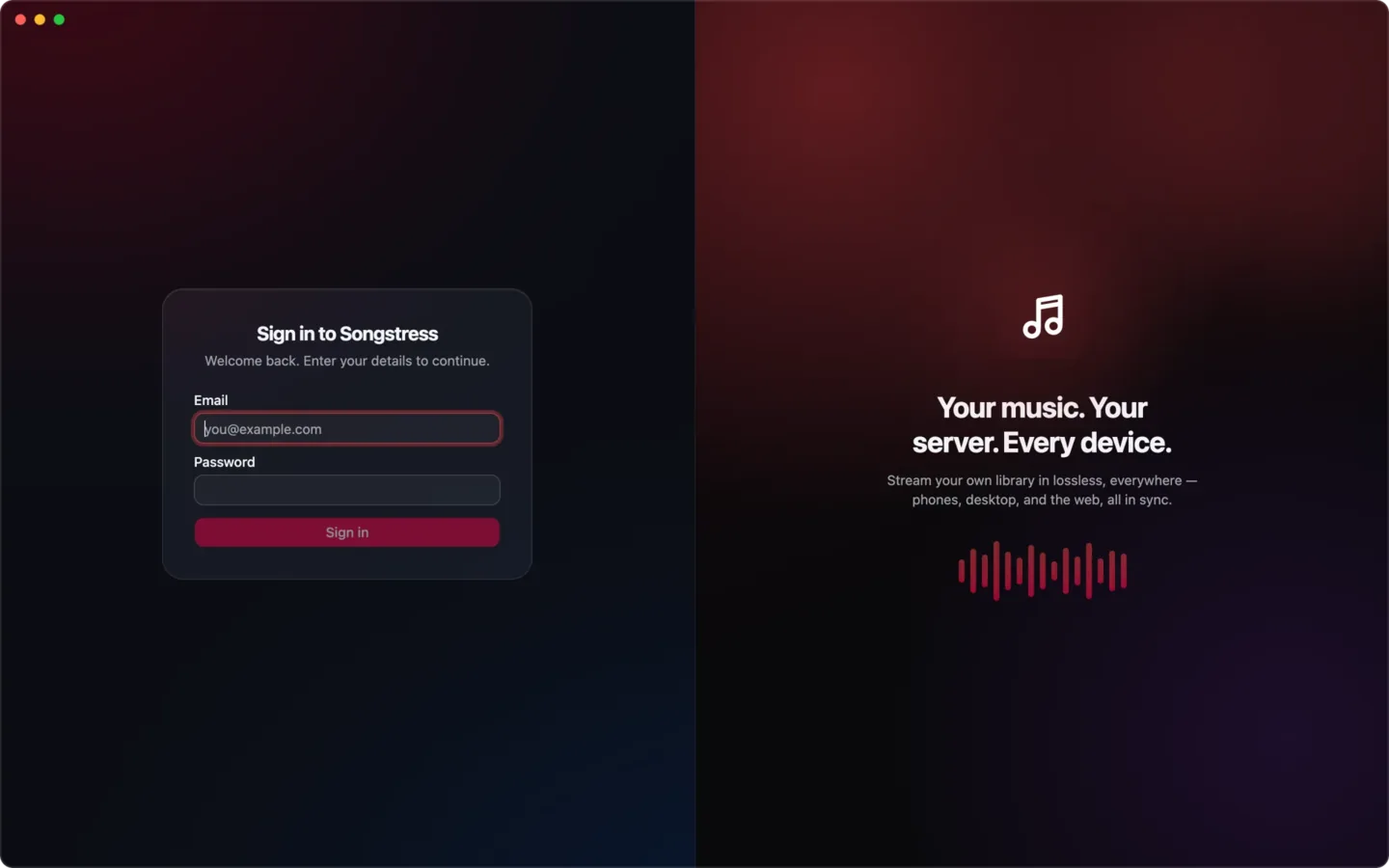
Point each app at your server's address, then sign in with your email and password.
On the web
Open your server's address in a browser, like http://192.168.1.20:8090, and sign in. The web app comes from the
server, so there is no address to type.
In the desktop and phone apps
- Open the app. The first screen is Connect to your server.
- Type your server's address and select Test.
- Select Connect, then sign in with your email and password.


To change servers later, select Change server on the sign-in screen.
Addresses that work
- With
http://orhttps://, the app uses the address as you type it. - Without either, it tries
https://first, thenhttp://. - Any name the device can reach: an IP address, a
.localname, a tailnet name or a domain. - Add the port when you connect to the server directly, like
http://192.168.1.20:8090. The app doesn't add one for you.
Plain http:// works on every app. Songstress never insists on https://.
On iPhone
The first time you connect to an address on your home network, allow Local Network access. If you said no, turn it on in Settings ▸ Privacy & Security ▸ Local Network ▸ Songstress.
Sign in with a code
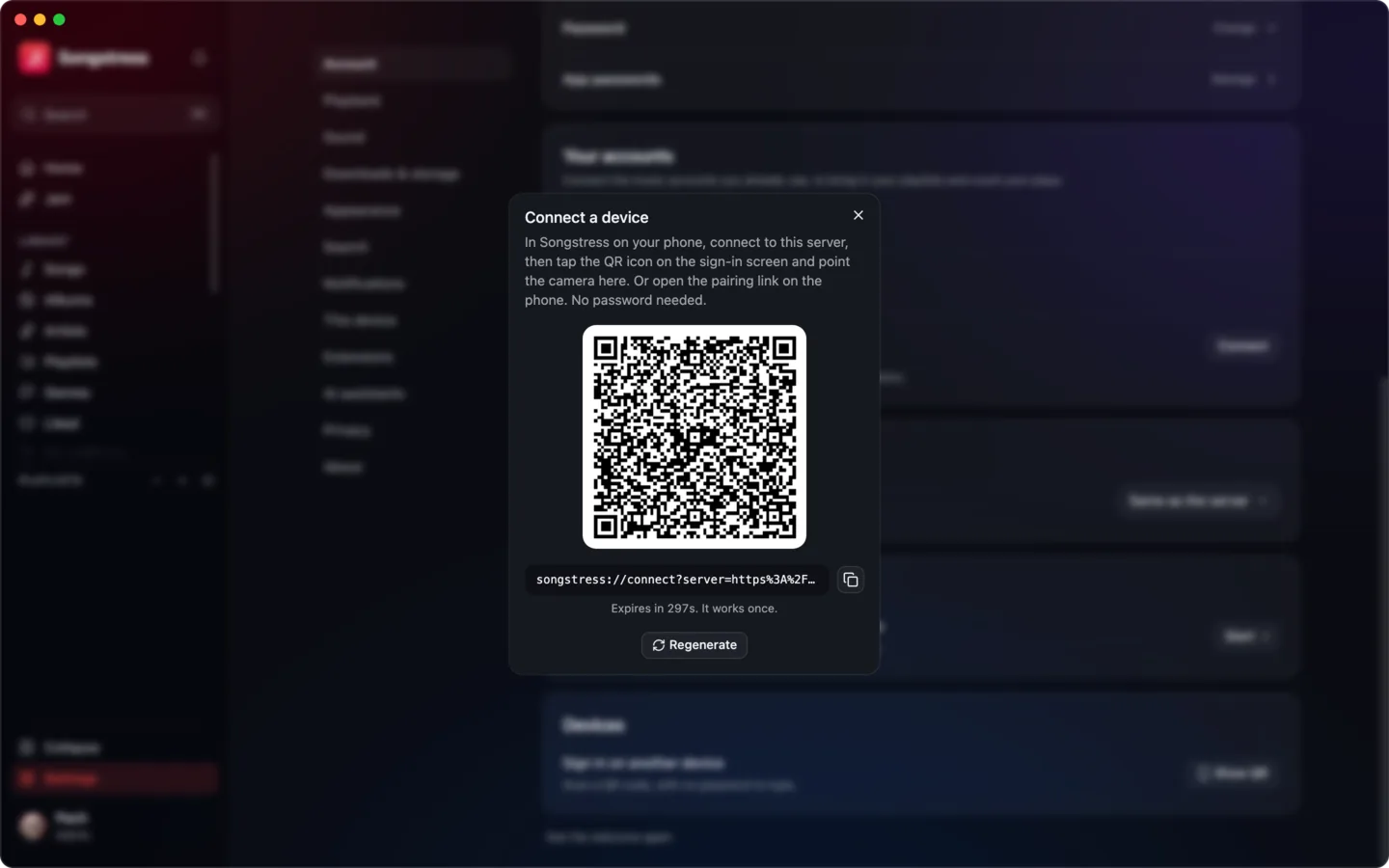
When you are already signed in somewhere, you can sign in on another device without typing your password.
- On the web or desktop app, go to Settings ▸ Account ▸ Devices.
- Next to Sign in on another device, select Show QR. A code appears, with Copy pairing link beside it. It expires after 5 minutes and works once.
- On your phone, connect to the same server address, then tap the QR icon on the sign-in screen and scan the code. Or open the pairing link on the phone or the desktop app, and it signs you in.
Away from home
Your admin can list several addresses for the server: one for home, a tailnet, a public domain. The desktop and phone apps move between them on their own, without stopping the music. See Reach your server from anywhere.
If it says the server needs an update
Your server needs an update means your app is newer than the server. Ask your admin to update Songstress.