Set up your server
Create the admin account, then let a short setup name your server and connect what you use.
Do the first run in a browser, on the web app the server serves at http://your-server:8090.
Create the admin account
- Open your server's address. A new server shows Create your admin account.
- Enter your name (optional), an email to sign in with, and a password of at least 10 characters.
- Select Create account.
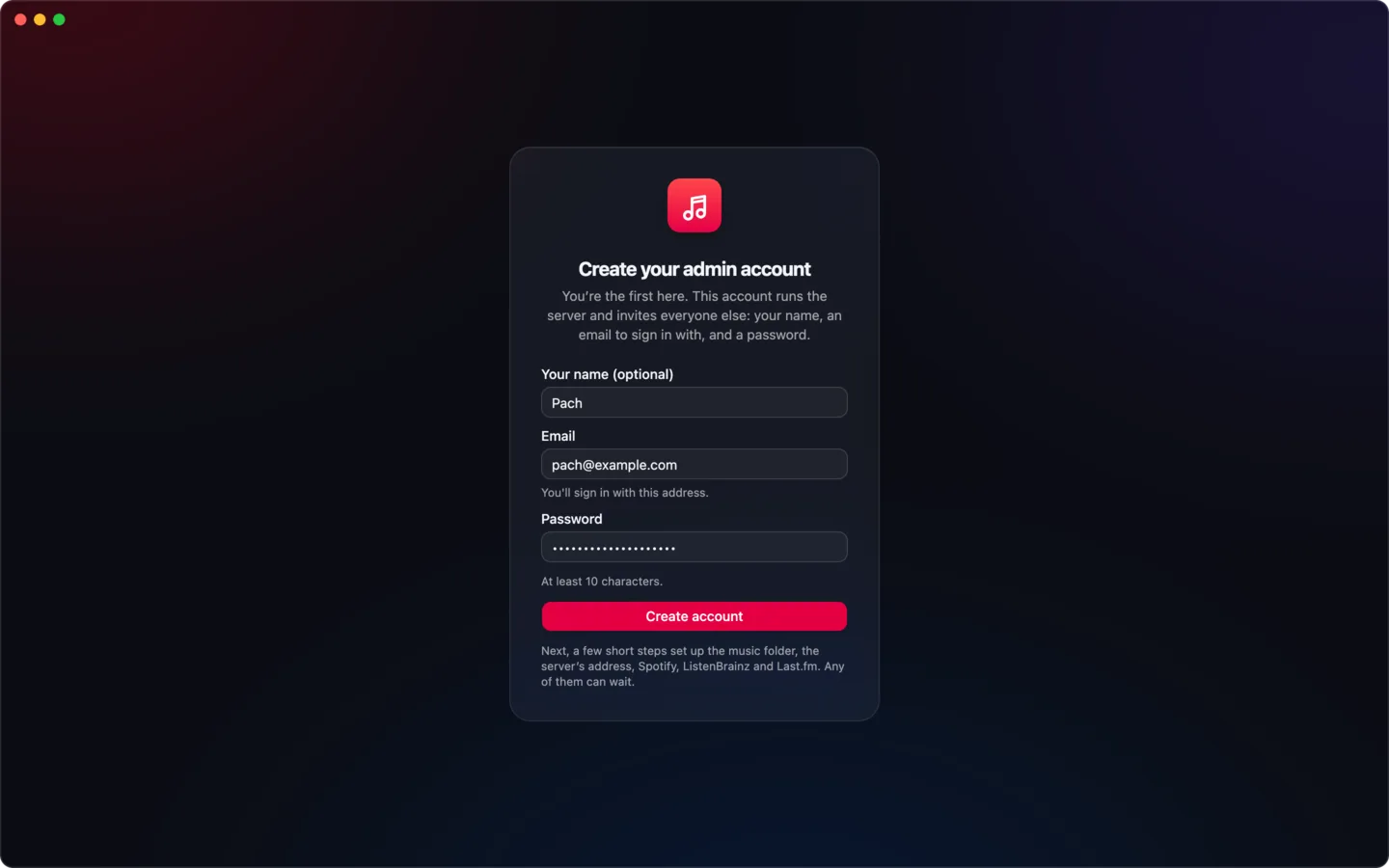
This account runs the server and invites everyone else. If you set SONGSTRESS_ADMIN_EMAIL and
SONGSTRESS_ADMIN_PASSWORD before the first start, the server made it already: sign in with those instead.
Go through the setup
Next comes Set up your server. Each step can wait: select Skip to move on, or Finish later to leave. Anything you skip stays in Finish setting up for later.
- Your account. Shows who you are signed in as.
- Music folder. Shows the import of your music folder as it happens, then what it found. See Your music folder.
- Server address. Give the server a name, set the address people use to reach it (the Public URL, like
https://music.example.com), and test it. Invite links, password resets and sign-in codes use that address. - Spotify. Your Spotify app's details, so Songstress can read Spotify for search and playlists.
- ListenBrainz. Your ListenBrainz token, to record what you play there.
- Last.fm. A Last.fm API key and secret, for play counts and scrobbling.
- Moving in. Bring each person's library over from the music server you used before.
- People. Invite the first people now, or later. See Invite people.
- Done. Shows what is set up, and what is still to do.
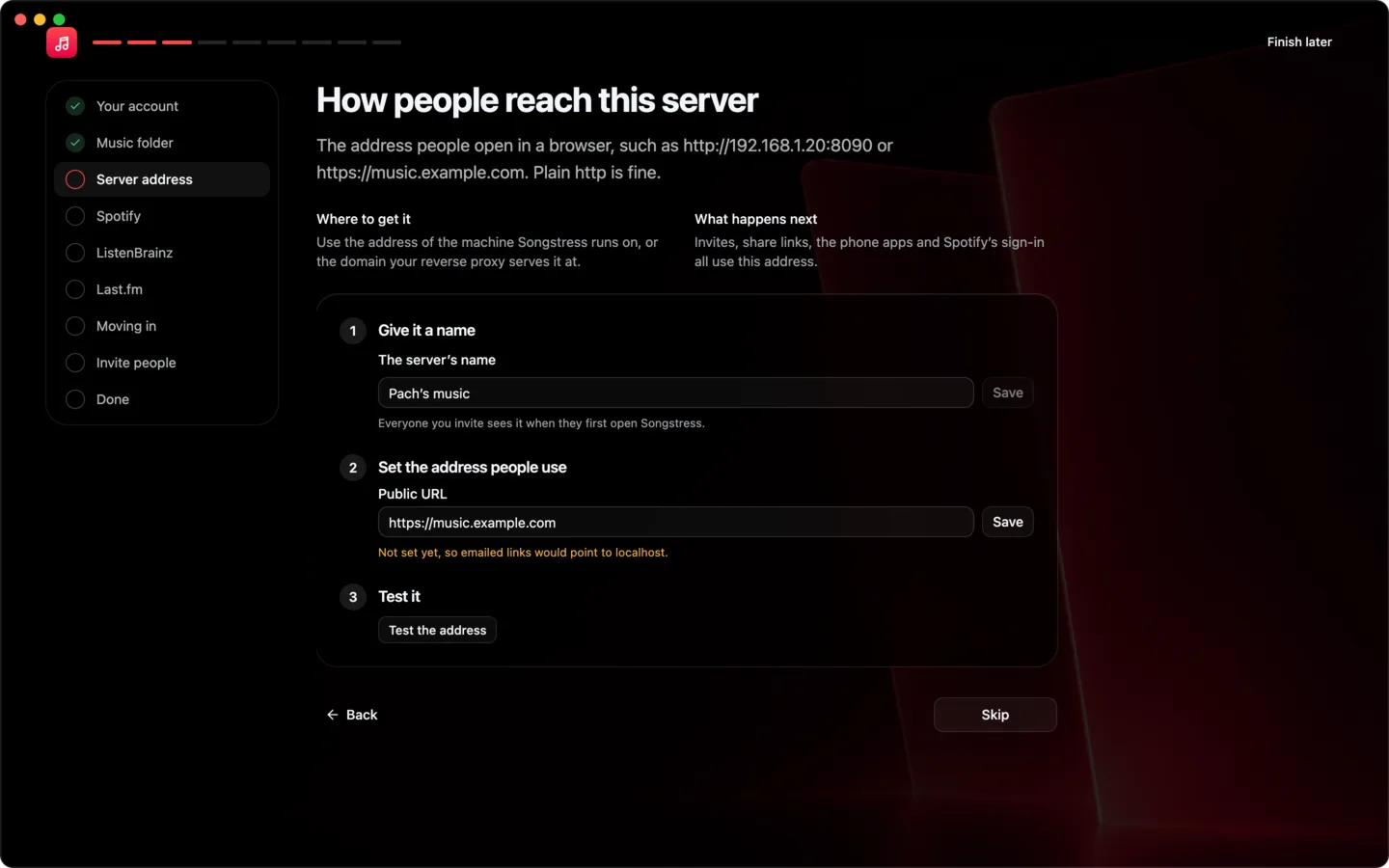
The server's name
You can only change the server's name in this setup, so pick one you like.
Meet the welcome
Everyone, you included, gets a short welcome the first time they sign in: their profile, their music, and the apps for each device. Select Go to Home at the end, or Skip the welcome.
While you look around, the first scan reads your library. Songs appear as it goes.