Use an extension
Where an extension shows up once your admin turns it on, and the choices that stay yours.
Once your admin turns an extension on, what it adds shows up in the apps for everyone on your server. A source shows in search, a theme in Settings ▸ Appearance, and an extension's own settings in Settings ▸ Extensions.
Search a new source
Search as you always do
A source an extension adds searches beside Songstress's own. Its results come with the rest, and it gets a chip of its own above them.
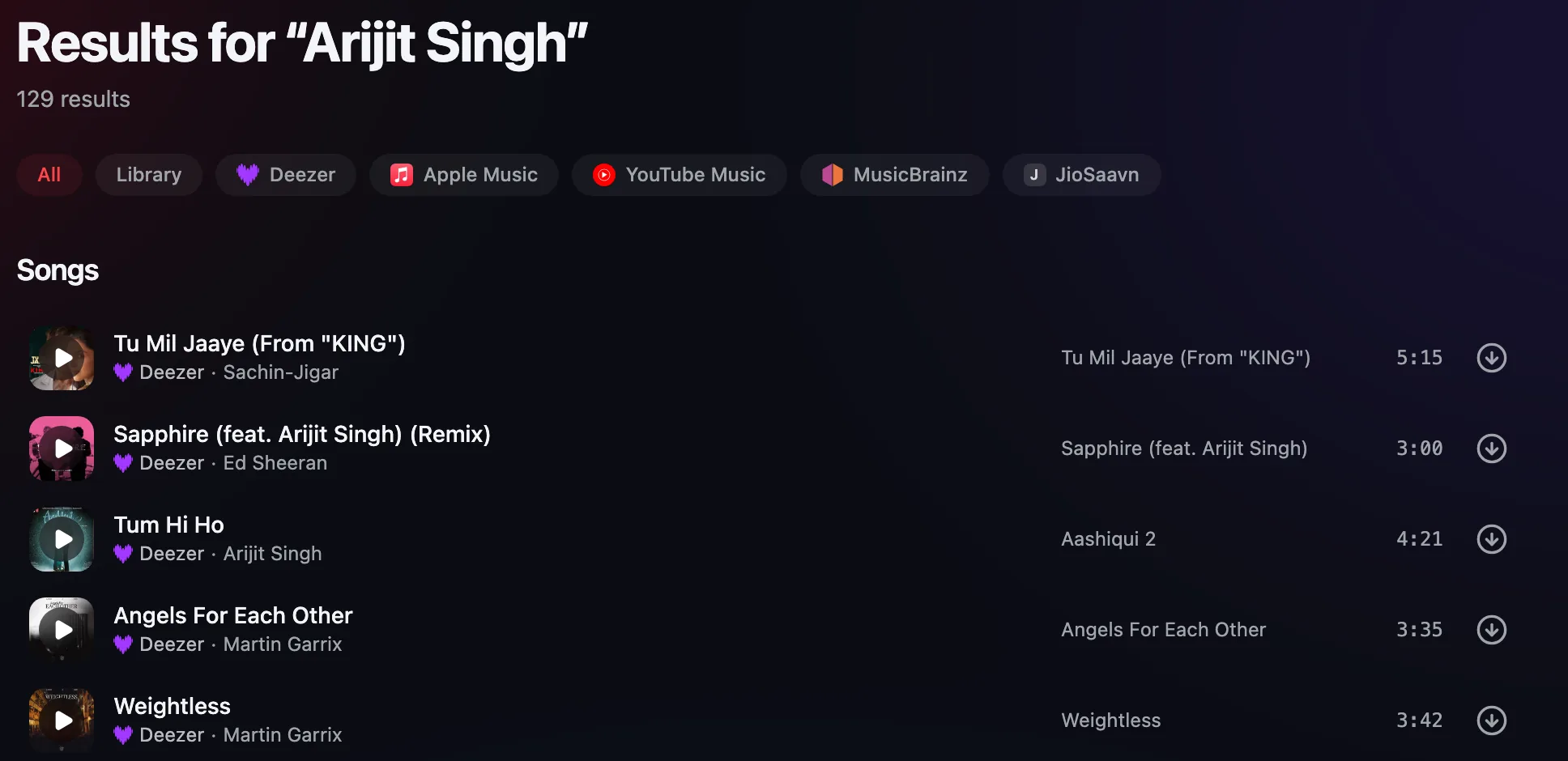
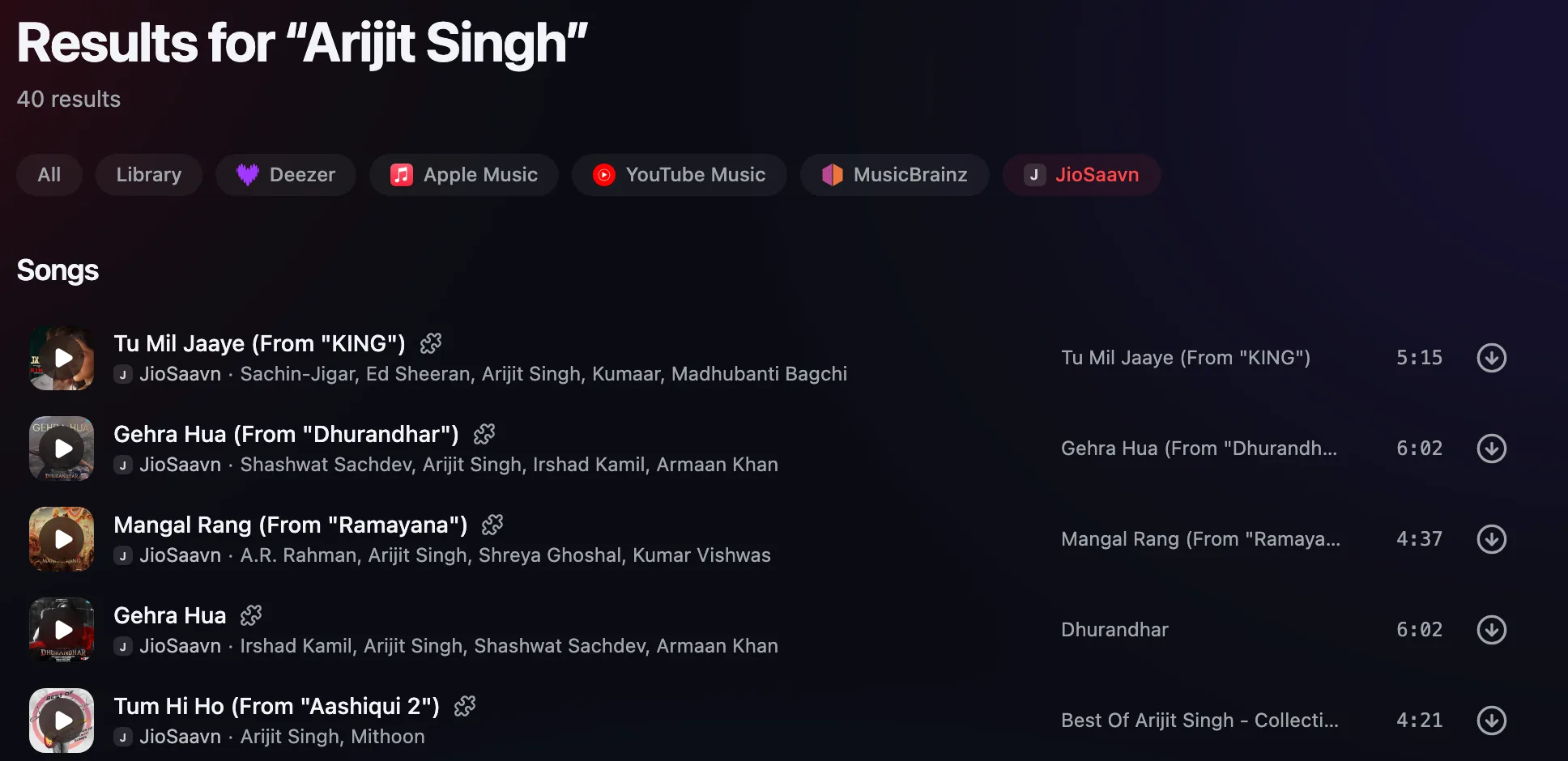
Pick its chip to see only its results
Songs from an extension's source carry its name and a small extension mark. Play one, or select Add to your library to keep it.
To hide a source on one device, go to Settings ▸ Search ▸ Search sources.
Your own settings and sign-ins
Settings ▸ Extensions ▸ Your extensions lists the extensions switched on, what each asks of you, and what it keeps on this device. An extension that connects to a service you use has Sign in there, for your own account.
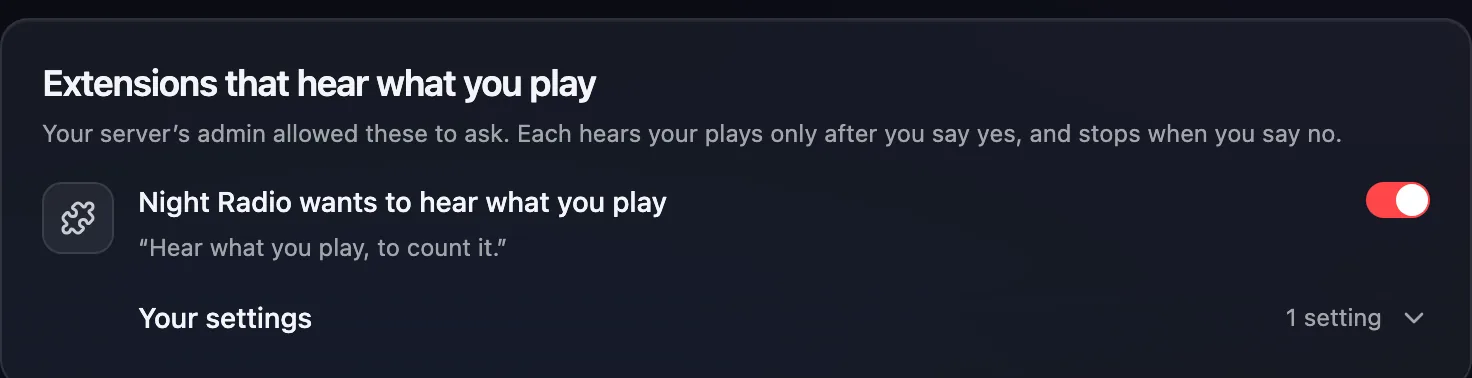
What it may hear
An extension that wants to hear what you play asks you too, not only your admin. Settings ▸ Privacy ▸ Extensions that hear what you play has a switch for each one. Nothing you play reaches it until you switch it on.