Streaming quality
Play the original files at home, and lighter streams when the connection is tight.
Choose your quality
- On the web and desktop, go to Settings ▸ Sound ▸ Streaming quality and choose a Quality. A browser can't tell Wi-Fi from mobile data, so there is one setting.
- On the phones, go to Settings ▸ Sound and choose one for Wi-Fi and one for Cellular.
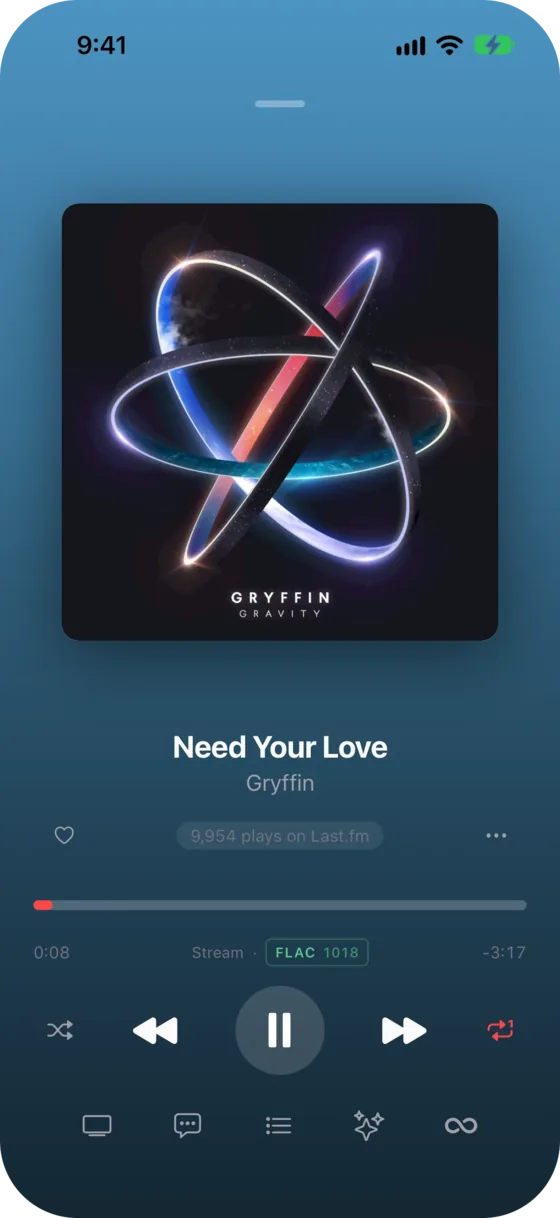
| Choice | What you hear |
|---|---|
| Original | The file as it is in your library, lossless included. The default on the web, desktop and Wi-Fi. |
| Auto | Songstress picks for the connection you are on. The default on mobile data. |
| A quality you pick | On the web and desktop, Transcode, then a quality in Stream at. On the phones, the quality itself. FLAC (24-bit or 16-bit, for hi-res files), Opus or MP3 at 320, 192, 128 or 96 kbps, or Data Saver at 64 kbps. |
Downloaded songs always play exactly as you saved them. See Downloads and offline.
How the server prepares streams
When you choose anything but Original, your server converts the song as it plays, and keeps copies ready for the phones so they start at once. Your admin sets how in Manage ▸ Server ▸ Streaming. See Streaming profiles.